ugit
UGit — Git Client

UGit is a free, open-source Git GUI client for Windows. macOS, and Linux. It provides a visual interface for managing Git repositories, handling common Git operations like staging, committing, branching, and syncing with remotes.
Quality Of Life Features
- Checks if there are remote changes before creating a commit.
- Lets you specify branches to prevent commits for, preventing unwanted commits for non-PR branches.
- Merge conflict resolution.
- Image Diff viewer.
Getting Started
Opening a Repository
- File → Open Repository (or
Ctrl+O) - Select a folder containing a
.gitdirectory - The repository loads with all its data
Cloning a Repository
- File → Clone… (or
Ctrl+Shift+C) - Enter the repository URL
- Choose a parent folder
- Click Clone
Initializing a New Repository
- File → Init New Repository
- Select a folder
- The folder becomes a Git repository
Interface Overview
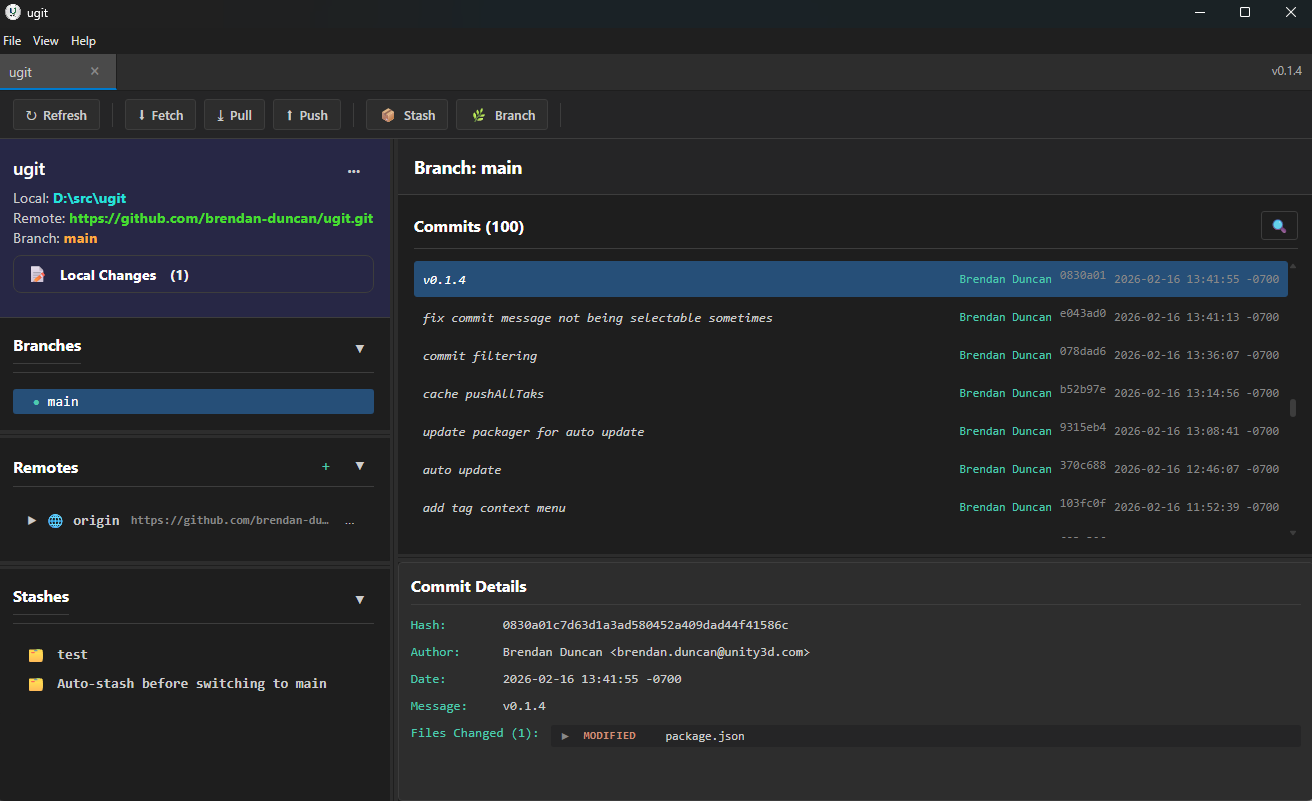
Main Features
Repo Info
- Displays information about the current state of the repository.
- Local Changes lists the files that have been modified or added to the repository.
Local Changes
- View modified files (staged and unstaged)
- Stage/unstage individual files or all at once
- Discard changes to files
- Create commits with messages
DiffViewer
- Text diffs — Syntax-highlighted code differences
- Image diffs — Three modes:
- Side-by-side comparison
- Swipe (draggable divider)
- Difference (highlights changes)
- Chunk staging — Stage or discard specific chunks
Branches
- View all local branches
- Create new branches
- Switch branches
- Merge branches
- Rebase branches
- Delete branches
Remotes
- Add and remove remotes
- Fetch from remotes
- Pull and push changes
- Manage remote branches
Stashes
- Save uncommitted changes temporarily
- Apply or pop stashes
- Delete stashes
Commits
- View commit history
- Browse commits by branch
- View commit details and files
- Create tags
- Cherry-pick, revert, and more
Common Workflows
Making Changes
- Modify files in your project
- View changes in the DiffViewer
- Stage files you want to commit
- Write a commit message
- Click Commit
Working with Branches
- Create a new branch: Branches → New Branch
- Switch to your branch: double-click the branch
- Make and commit changes
- Merge or rebase when ready
Syncing with Remote
- Pull — Fetch and merge remote changes
- Push — Upload your commits to remote
- Fetch — Download remote changes without merging
Handling Conflicts
- UGit detects merge conflicts
- Use the conflict resolution controls to choose versions
- Or open in VS Code to resolve manually
- Commit the resolved file
Keyboard Shortcuts
| Action | Shortcut |
|---|---|
| Open Repository | Ctrl+O |
| Clone | Ctrl+Shift+C |
| Stage Selected | Ctrl+S |
| Unstage Selected | Ctrl+U |
| Commit | Ctrl+Enter |
Menu Reference
File Menu
- Clone… — Clone from a remote URL
- Open Repository — Open an existing repository
- Init New Repository — Create a new repository
- Recent Repositories — Quick access to recent projects
- Preferences — Configure settings
- Exit — Close the application
View Menu
- Color Mode — Change the interface to the Dark or Light color mode
- Clear All Caches — Delete all caches used for repository viewing
- Toggle Developmer Tools — Show/hide the developer tools window
Settings
Access via File → Preferences:
- External editor — The editor to use for “Open in Editor”
- Push all tags by default — Push will include pushing all tags
- Commit block list — Comma separated list of branch names to prevent creating Commmits from
- File Refresh Time — How frequent the Local Changes will be refreshed
- Max Display Commits — The number of commits to list in a Branch view