ugit
Stashes
Stashes are a way to save your uncommitted changes temporarily without committing them. This is useful when you need to switch branches but have uncommitted work, or when you want to set aside changes temporarily.
What is a Stash?
A stash takes your uncommitted changes (both staged and unstaged) and saves them as a temporary commit. Your working directory is then cleaned, allowing you to:
- Switch branches without committing
- Pull changes that might conflict
- Work on something else temporarily
- Come back to your changes later
Creating a Stash
From Local Changes Panel
- Right-click on the Local Changes section in the RepoInfo panel
- Select Stash Changes
- Enter an optional stash message
- Click Stash
Using Keyboard Shortcut
- Make sure you have uncommitted changes
- Right-click → Stash Changes
Auto-Stash
ugit automatically creates a stash in certain situations:
- When pulling changes with uncommitted work
- When switching branches with uncommitted work
Viewing Stashes
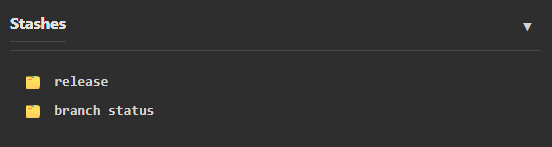
The Stashes panel shows all saved stashes:
| Field | Description |
|---|---|
| Icon | Stash indicator (🗂️) |
| Message | Your stash description |
| Index | Stash number (stash@{0} is most recent) |
Click on a stash to view its details.
Applying a Stash
Apply (Keep Stash)
Applying a stash brings back the saved changes but keeps the stash in the list.
- Right-click on a stash
- Select Apply
- Resolve any conflicts if necessary
Pop (Apply and Remove)
Popping applies the most recent stash and removes it from the stash list.
This is the same as:
- Apply the stash
- Delete the stash
Deleting a Stash
Delete a Specific Stash
- Right-click on a stash
- Select Delete
Clear All Stashes
⚠️ This permanently deletes all stashes.
Stashes can only be deleted one at a time through the UI.
Renaming a Stash
- Right-click on a stash
- Select Rename
- Enter a new message
- Click Rename
Stash Workflows
Workflow 1: Switch Branches with Uncommitted Work
- You have uncommitted changes on
feature-branch - You need to check
mainquickly - Right-click → Stash Changes
- Switch to
main - Do your work
- Switch back to
feature-branch - Right-click on stash → Apply or Pop
Workflow 2: Pull with Uncommitted Changes
- You have uncommitted changes
- You click Pull
- ugit detects uncommitted work and offers to stash first
- Accept the auto-stash
- Pull completes
- Your stash is automatically applied
- Resolve any conflicts if necessary
Workflow 3: Save Work in Progress
- You have incomplete changes
- You want to try something different
- Stash your current work with a message like “WIP: feature X”
- Try your experiment
- When done, pop the stash to continue
Stash Commands Reference
| Git Command | Description |
|---|---|
git stash |
Save uncommitted changes |
git stash push -m "message" |
Stash with a message |
git stash list |
List all stashes |
git stash pop |
Apply most recent stash and remove it |
git stash apply |
Apply stash without removing |
git stash drop |
Delete a specific stash |
git stash clear |
Delete all stashes |
Tips
Use Descriptive Messages
When creating a stash, use a clear message:
- “WIP: login feature” — Work in progress
- “Before refactor” — Saving state before big change
- “Hotfix ready to commit” — Changes ready for another branch
Don’t Rely on Stashes Long-Term
Stashes are meant for temporary storage. Commit your changes when you’re ready.
Stashes vs Branches
- Branches: For long-term feature development
- Stashes: For temporary storage (minutes to hours)
Troubleshooting
Stash Conflicts
When applying a stash, you may get merge conflicts. Resolve them like regular merge conflicts, then continue.
Stash Not Applying
If a stash won’t apply cleanly:
- Try
git stash dropto remove it - Manually recreate the changes
- Or commit your work instead
Lost Stashes
If you accidentally drop a stash, you may be able to recover it with:
git fsck --unreachable | grep commit
Related
- Local Changes — Managing uncommitted changes
- Branches — Managing local branches
- Merging — Merging branches