ugit
DiffViewer
The DiffViewer displays changes between files, showing what was added, removed, or modified. It’s shown when you select a file in the Unstaged or Staged files list.
Overview
The DiffViewer shows:
| Content Type | Description |
|---|---|
| Text files | Syntax-highlighted diff with line-by-line or side-by-side view |
| Image files | Visual comparison with side-by-side, swipe, or difference modes |
| Binary files | Notification that diff isn’t available |
Text File Diffs
View Modes
You can switch between diff view modes:
- Line-by-Line — Shows changes in a single column, with additions and deletions marked
- Side-by-Side — Shows original and modified versions next to each other
💡 Change the default view mode in View → Diff View Mode
Understanding the Diff
| Symbol | Meaning |
|---|---|
| Red line | Content was removed |
| Green line | Content was added |
| Line numbers | Show where changes occur in the file |
Diff Chunks
Changes are grouped into “chunks” — contiguous sections of changes. Each hunk shows:
- The range of lines affected (e.g.,
@@ -10,5 +10,7 @@) - The actual changes within that section
Image Diffs
When you select an image file (PNG, JPG, GIF, SVG, etc.), ugit provides three comparison modes.
Side-by-Side
Shows the original and modified images next to each other.
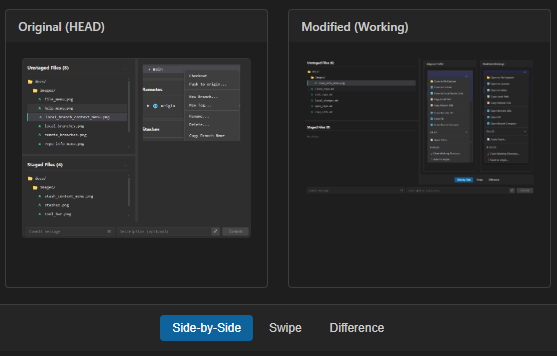
- Left panel — Original (HEAD version)
- Right panel — Modified (working directory)
Swipe
A single view with a draggable divider:
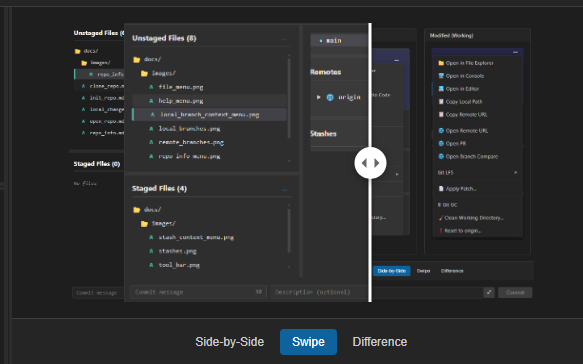
- Left of bar — Original image
- Right of bar — Modified image
- Drag the handle left or right to compare different areas
Difference
Shows a computed difference image:
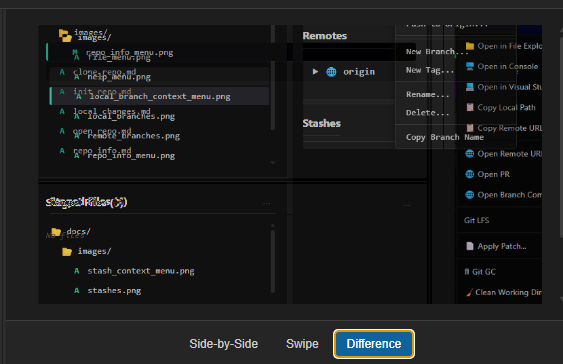
- Black pixels — No change
- Colored pixels — Areas that differ
- The more different the pixel, the brighter it appears
This helps identify exactly what changed in an image.
Chunk Actions
When you hover over a diff chunk, action buttons appear:
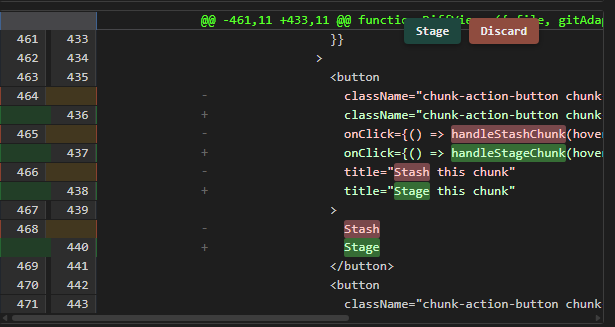
| Action | Description |
|---|---|
| Stage | Stage only this chunk |
| Discard | Discard changes in this chunk |
⚠️ Warning: Discarding changes cannot be undone.
Conflict Resolution
When viewing a conflicted file during a merge, the DiffViewer shows conflict markers:
<<<<<<< HEAD
Your changes
=======
Incoming changes
>>>>>>> branch-name
Use the conflict resolution controls to choose which version to keep:
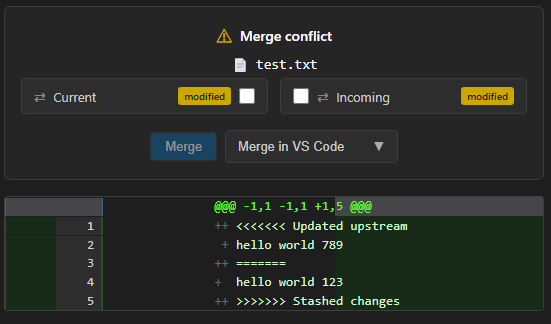
- Select ** Ours** or Theirs
- Click Merge to resolve with that version
- Or click Merge in VS Code to open in your editor
Keyboard Shortcuts
| Action | Shortcut |
|---|---|
| Refresh diff | F5 |
Tips
Review Before Committing
Always review your changes in the DiffViewer before staging and committing. This ensures you’re including exactly what you intend.
Check Image Changes
For images, use the Difference mode to spot subtle changes that might be hard to see otherwise.
Use Chunk Staging
For large files, you can stage or discard individual chunks rather than the entire file.
Troubleshooting
“No changes to display”
This can happen when:
- The file hasn’t been modified
- The file is binary and Git can’t compute a diff
- The file was deleted
Image Not Loading
- Check that the file exists in the working directory
- Verify you have permission to read the file
Diff Shows Wrong Content
If you expect to see changes but don’t:
- Click on the file in the file list to refresh
- Check if the file was accidentally staged
- Try switching between view modes
Related
- Local Changes — Managing staged and unstaged files
- Branches — Working with local branches
- Merging — Merging branches